# Technical Documentation

## Creating forms <a href="#id-2p4ylpspjcft" id="id-2p4ylpspjcft"></a>

First, go to the **Content** section and create a new item under Content by selecting "**UForm Kit"** document type. We will name it UForm Kit in this example.

<figure><img src="/files/Au5Jj1caAxXFvRuh2GWA" alt=""><figcaption></figcaption></figure>

After that, add child item under UForm Kit by selecting "**UForm"** document type. We will name it Contact.

<figure><img src="/files/jAb85Xwv9wVDkCtSKeF2" alt=""><figcaption></figcaption></figure>

Default contact form is now created and can be customized by changing form or email templates.

### Form template

In **Template** tab, you can add a new form fields by creating a new form-tags and inserting them into the form template.

<figure><img src="/files/MOBrs5kFRbPB6NU1E9Fq" alt=""><figcaption></figcaption></figure>

A form-tag acts as a placeholder for HTML form controls, such as a text input field, or for a collection of controls like a group of checkboxes. These form-tags are substituted with actual HTML code during the form rendering process.

It's important to adhere to a particular syntax rule for form-tags to function correctly, for example, \[text\* your-name]. However, memorizing this syntax is not essential as users have access to tag-generator tools. These tools are designed to create the correct form-tags, simplifying the process and ensuring functionality.

<figure><img src="/files/r6gNB7FAt4t2K8ZcSjUU" alt=""><figcaption></figcaption></figure>

Note that changes in a form template are not automatically reflected in the mail settings of the contact form.

### **Form-tag syntax**

The structure of a form tag can be broken down into four distinct components: type, name, options, and values.

* The 'type' is crucial, as it determines the HTML element that the tag will transform into and the kind of input it will accept.
* The 'name' serves as an identifier for the input field. While most form tags include a name, there are some exceptions.
* 'Options' are used to define the behavior and appearance of the form tag. These are not mandatory and can be included as needed.
* 'Values' generally set default values, although their use can vary depending on the tag's type. Like options, values are also optional.

It's important to follow the correct order when constructing a form tag. Options cannot precede the name, and values cannot be placed before options. This sequence is essential for the proper functioning of the form tag.

### **List of form-tag types**

* [Text fields](#text-fields) (`text`, `text*`, `email`, `email*`, `tel`, `tel*`, `url`, `url*`, `textarea` and `textarea*`)
* [Number fields](#number-fields) (`number`, `number*`, `range` and `range*`)
* [Date field](#date-field) (`date` and `date*`)
* [Checkboxes, radio buttons, and menus](#checkboxes-radio-buttons-and-menus) (`checkbox`, `checkbox*`, `radio`, `select` and `select*`)
* [File uploading field](#file-uploading-field) (`file` and `file*`)
* [Acceptance checkbox](#acceptance-checkbox) (`acceptance`)
* [Submit button](#submit-button) (`submit`)
* [Hidden ](#hidden)(`hidden`)

#### Text fields

Various form-tags can be used to represent text input fields: text fields (`text` and `text*`), email fields (`email` and `email*`), telephone number fields (`tel` and `tel*`), URL fields (`url` and `url*`), and text areas (`textarea` and `textarea*`).

***Text field***

Form-tags `text` and `text*` are used for creating single-line input fields that accept any textual input. Form-tag `text*` is a required field.

<table><thead><tr><th width="154">OPTION</th><th width="407">DESCRIPTION</th><th>EXAMPLE</th></tr></thead><tbody><tr><td>id:<em>(id)</em></td><td>Specifies id of the input element</td><td>id:test</td></tr><tr><td>class:<em>(class)</em></td><td>Specifies  class of the input element. Multiple classes can be assigned, like this: <code>class:nice class required</code></td><td>class:nice</td></tr><tr><td>size:<em>(num)</em></td><td>Specifies the width of the input element(size attribute). Default value is 40</td><td>size:40</td></tr><tr><td>minlength:<em>(num)</em></td><td>Specifies the minimum length allowed for the input element</td><td>minlength:10</td></tr><tr><td>maxlength:<em>(num)</em></td><td>Specifies the maximum length allowed for the input element</td><td>maxlength:40</td></tr><tr><td>placeholder</td><td>If this option is used, default value text will be used as placeholder</td><td></td></tr></tbody></table>

Example:

```
[text your-subject class:required "Contact"]
```

You can include form-tag `text` by selecting the "**text**" button in the tools section and then filling in the generated form.

<figure><img src="/files/2qjEoYiaekQVGQSAfPCf" alt="" width="551"><figcaption></figcaption></figure>

***Email field***

Form-tags `email`and `email*` are used for creating single-line input fields that accept only email addresses. Form-tag email\* is a required field.

<table><thead><tr><th width="154">OPTION</th><th width="407">DESCRIPTION</th><th>EXAMPLE</th></tr></thead><tbody><tr><td>id:<em>(id)</em></td><td>Specifies id of the input element</td><td>id:test</td></tr><tr><td>class:<em>(class)</em></td><td>Specifies  class of the input element. Multiple classes can be assigned, like this: <code>class:nice class required</code></td><td>class:nice</td></tr><tr><td>size:<em>(num)</em></td><td>Specifies the width of the input element(size attribute). Default value is 40</td><td>size:40</td></tr><tr><td>minlength:<em>(num)</em></td><td>Specifies the minimum length allowed for the input element</td><td>minlength:10</td></tr><tr><td>maxlength:<em>(num)</em></td><td>Specifies the maximum length allowed for the input element</td><td>maxlength:40</td></tr><tr><td>placeholder</td><td>If this option is used, default value text will be used as placeholder</td><td></td></tr></tbody></table>

Example:

```
[email* your-email "test@test.com"]
```

You can include form-tag `email`by selecting the "**email**" button in the tools section and then filling in the generated form.

<figure><img src="/files/iUYRsTkzDpcrW1Y0UbFI" alt="" width="556"><figcaption></figcaption></figure>

***URL field***

Form-tags `url`and url`*` are used for creating single-line input fields that accept only URL. Form-tag url\* is a required field.

<table><thead><tr><th width="154">OPTION</th><th width="407">DESCRIPTION</th><th>EXAMPLE</th></tr></thead><tbody><tr><td>id:<em>(id)</em></td><td>Specifies id of the input element</td><td>id:test</td></tr><tr><td>class:<em>(class)</em></td><td>Specifies  class of the input element. Multiple classes can be assigned, like this: <code>class:nice class required</code></td><td>class:nice</td></tr><tr><td>size:<em>(num)</em></td><td>Specifies the width of the input element(size attribute). Default value is 40</td><td>size:40</td></tr><tr><td>minlength:<em>(num)</em></td><td>Specifies the minimum length allowed for the input element</td><td>minlength:10</td></tr><tr><td>maxlength:<em>(num)</em></td><td>Specifies the maximum length allowed for the input element</td><td>maxlength:40</td></tr><tr><td>placeholder</td><td>If this option is used, default value text will be used as placeholder</td><td></td></tr></tbody></table>

Example:

```
[url your-url "http://test.com"]
```

You can include form-tag `url` by selecting the "**url**" button in the tools section and then filling in the generated form.

<figure><img src="/files/HpTiG2uGbfD8YmXFg9YN" alt="" width="560"><figcaption></figcaption></figure>

***Telephone number field***

Form-tags `tel` and `tel*` are used for creating single-line input fields that accept only phone number. Form-tag `tel*` is a required field.

<table><thead><tr><th width="154">OPTION</th><th width="407">DESCRIPTION</th><th>EXAMPLE</th></tr></thead><tbody><tr><td>id:<em>(id)</em></td><td>Specifies id of the input element</td><td>id:test</td></tr><tr><td>class:<em>(class)</em></td><td>Specifies  class of the input element. Multiple classes can be assigned, like this: <code>class:nice class required</code></td><td>class:nice</td></tr><tr><td>size:<em>(num)</em></td><td>Specifies the width of the input element(size attribute). Default value is 40</td><td>size:40</td></tr><tr><td>minlength:<em>(num)</em></td><td>Specifies the minimum length allowed for the input element</td><td>minlength:10</td></tr><tr><td>maxlength:<em>(num)</em></td><td>Specifies the maximum length allowed for the input element</td><td>maxlength:40</td></tr><tr><td>placeholder</td><td>If this option is used, default value text will be used as placeholder</td><td></td></tr></tbody></table>

Example:

<pre><code><strong>[text your-phone "111-222-333"]
</strong></code></pre>

You can include form-tag `tel` by selecting the "**tel**" button in the tools section and then filling in the generated form.

<figure><img src="/files/vy1Qm6O0lbeFM4aoV4wL" alt="" width="548"><figcaption></figcaption></figure>

***Textarea***

Form-tags `textarea` and `textarea*` are used for creating multi-line input . Form-tag `textarea*` is a required field.

<table><thead><tr><th width="154">OPTION</th><th width="407">DESCRIPTION</th><th>EXAMPLE</th></tr></thead><tbody><tr><td>id:<em>(id)</em></td><td>Specifies id of the input element</td><td>id:test</td></tr><tr><td>class:<em>(class)</em></td><td>Specifies  class of the input element. Multiple classes can be assigned, like this: <code>class:nice class required</code></td><td>class:nice</td></tr><tr><td>cols:<em>(num)</em></td><td>Specifies the width of the text area(cols attribute). Default value is 40</td><td>size:40</td></tr><tr><td>rows:<em>(num)</em></td><td>Specifies the number of lines in the text area(rows attribute). Default value is 40</td><td>rows:10</td></tr><tr><td>minlength:<em>(num)</em></td><td>Specifies the minimum length allowed for the input element</td><td>minlength:10</td></tr><tr><td>maxlength:<em>(num)</em></td><td>Specifies the maximum length allowed for the input element</td><td>maxlength:40</td></tr><tr><td>placeholder</td><td>If this option is used, default value text will be used as placeholder</td><td></td></tr></tbody></table>

Example:

```
[textarea* your-message "Enter text..."]
```

You can include form-tag `textarea` by selecting the "**textarea**" button in the tools section and then filling in the generated form.

<figure><img src="/files/KKTYa2iXX0xEVDPEPWi4" alt="" width="536"><figcaption></figcaption></figure>

**Character count**

For a character count feature in an input field with the maxlength attribute, you can utilize the count form-tag. This tag serves as a placeholder for displaying the number of characters typed, and it must have the same name as the corresponding input field.

Assuming you have an input field like this (with name="your-message"):

```
[textarea* your-message maxlength:40]
[count your-message]
```

To include a character count for this field, insert the \[count your-message] tag:

```
[textarea* your-message maxlength:40]
[count your-message]
```

If you prefer to show the remaining character count up to the maxlength, you can achieve this by adding the down option to the count form-tag:

```
[textarea* your-message maxlength:40]
[count your-message down]
```

#### Number fields

Two form-tags are available for handling number fields: `number` and `range`. These align with the HTML5 input types '**number**' and '**range**'. Generally, a number input is presented as a spinner control, whereas a range input is commonly depicted as a slider control.

Form-tags `number*` and `range*` are a required fields.&#x20;

<table><thead><tr><th width="154">OPTION</th><th width="407">DESCRIPTION</th><th>EXAMPLE</th></tr></thead><tbody><tr><td>id:<em>(id)</em></td><td>Specifies id of the input element</td><td>id:test</td></tr><tr><td>class:<em>(class)</em></td><td>Specifies  class of the input element. Multiple classes can be assigned, like this: <code>class:nice class required</code></td><td>class:nice</td></tr><tr><td>min:<em>(num)</em></td><td>Specifies the minimum value allowed (min attribute)</td><td>min:10</td></tr><tr><td>max:<em>(num)</em></td><td>Specifies the minimum value allowed (max attribute)</td><td>max:100</td></tr><tr><td>step:<em>(num)</em></td><td>Specifies the interval between legal numbers. If step is 5,  legal numbers could be 0, 5, 10, etc.</td><td>step:5</td></tr><tr><td>placeholder</td><td>If this option is used, default value text will be used as placeholder</td><td></td></tr></tbody></table>

Examples:

```
[number your-number min:10 max:100 "50"]
[range your-number min:10 max:100 "50"]
```

Both form-tags can also be added to a form by clicking on **"number"** button in the tools section and selecting desired filed type.

<figure><img src="/files/iPECdcyVrvTN7eTkarMg" alt="" width="539"><figcaption></figcaption></figure>

#### Date field

The form-tags `date`  and `date*` align with the HTML5 input type '**date**'. When providing a value in a date field, it must be in  YYYY-MM-DD format as per the HTML5 specification. In most instances, managing this format is unnecessary, as the browser's date picker UI automatically sets the value in the correct format.

<table><thead><tr><th width="154">OPTION</th><th width="407">DESCRIPTION</th><th>EXAMPLE</th></tr></thead><tbody><tr><td>id:<em>(id)</em></td><td>Specifies id of the input element</td><td>id:test</td></tr><tr><td>class:<em>(class)</em></td><td>Specifies  class of the input element. Multiple classes can be assigned, like this: <code>class:nice class required</code></td><td>class:nice</td></tr><tr><td>min:<em>(date)</em></td><td>Specifies the minimum value allowed (min attribute)</td><td>min:2023-01-01</td></tr><tr><td>max:<em>(date)</em></td><td>Specifies the minimum value allowed (max attribute)</td><td>max:2024-01-01</td></tr><tr><td>placeholder</td><td>If this option is used, default value text will be used as placeholder</td><td></td></tr></tbody></table>

Example:

```
[date your-date min:2023-01-01 max:2024-01-01 "2023-04-01"]
```

You can include form-tag `date`by selecting the "**date**" button in the tools section and then filling in the generated form.

<figure><img src="/files/KOkuRD1SgXuXVWAUYlnr" alt="" width="555"><figcaption></figcaption></figure>

#### Checkboxes, radio buttons and menus

There are several types of form-tags for representing checkboxes, radio buttons, and drop-down menus.

***Checkboxes***

Both `checkbox` and `checkbox*` align with the HTML input type '**checkbox**'. `checkbox*` requires the user to check at least one of the boxes.

<table><thead><tr><th width="154">OPTION</th><th width="407">DESCRIPTION</th><th>EXAMPLE</th></tr></thead><tbody><tr><td>id:<em>(id)</em></td><td>Specifies id of the input element</td><td>id:test</td></tr><tr><td>class:<em>(class)</em></td><td>Specifies  class of the input element. Multiple classes can be assigned, like this: <code>class:nice class required</code></td><td>class:nice</td></tr><tr><td>default:<em>(date)</em></td><td>Specifies options that are preselected. The integer following 'default:' indicates the position in the order of items, where 1 represents the first one. To select two or more items, concatenate integers with underscores (_), such as 'default:1_2_3'.</td><td>default:1<br>default:1_2</td></tr><tr><td>label_first</td><td>Typically, a checkbox is positioned first, followed by the label. However, by including the 'label_first' option, you have the ability to reverse their order.</td><td></td></tr><tr><td>use_label_element</td><td>Enclose each checkbox within a <code>&#x3C;label></code> tag</td><td></td></tr><tr><td>exclusive</td><td>This implies that when you choose a checkbox within a group, others will be deselected, allowing the group to maintain either a zero-selected or one-selected state only.</td><td></td></tr><tr><td>query</td><td>Retrieve values from the database by formulating an SQL query.</td><td>query:select Name from City</td></tr></tbody></table>

Example:

```
[checkbox your-color "Red" "Blue" "Green"]
```

You can include form-tag `checkboxes` by selecting the "**checkboxes**" button in the tools section and then filling in the generated form.

<figure><img src="/files/8XvtFbJQDeJHNdRp1CHN" alt="" width="534"><figcaption></figcaption></figure>

***Radio buttons***

Form-tag `radio` represents HTML input type '**radio**'. As a group of radio buttons inherently requires a selection, a radio form-tag functions as a mandatory field. It is recommended to preselect an option within a radio button group using the 'default:1' option.

<table><thead><tr><th width="154">OPTION</th><th width="407">DESCRIPTION</th><th>EXAMPLE</th></tr></thead><tbody><tr><td>id:<em>(id)</em></td><td>Specifies id of the input element</td><td>id:test</td></tr><tr><td>class:<em>(class)</em></td><td>Specifies  class of the input element. Multiple classes can be assigned, like this: <code>class:nice class required</code></td><td>class:nice</td></tr><tr><td>default:<em>(date)</em></td><td>Specifies options that are preselected. The integer following 'default:' indicates the position in the order of items, where 1 represents the first one. </td><td>default:1<br></td></tr><tr><td>label_first</td><td>Typically, a radio button is positioned first, followed by the label. However, by including the 'label_first' option, you have the ability to reverse their order.</td><td></td></tr><tr><td>use_label_element</td><td>Enclose each , radio button within a <code>&#x3C;label></code> tag</td><td></td></tr><tr><td>query</td><td>Retrieve values from the database by formulating an SQL query.</td><td>query:select Name from City</td></tr></tbody></table>

Example:

```
[radio your-color use_label_element default:1 "Red" "Blue" "Green"]
```

You can include form-tag `radio buttons` by selecting the "**radio buttons**" button in the tools section and then filling in the generated form.

<figure><img src="/files/vhUsldK0EhvKaKMH9RjU" alt="" width="545"><figcaption></figcaption></figure>

**Drop-down menus**

Both `select` and `select*` indicate a drop-down menu ( in HTML). The `select*` option mandates that the user selects at least one option from the menu.

<table><thead><tr><th width="154">OPTION</th><th width="407">DESCRIPTION</th><th>EXAMPLE</th></tr></thead><tbody><tr><td>id:<em>(id)</em></td><td>Specifies id of the input element</td><td>id:test</td></tr><tr><td>class:<em>(class)</em></td><td>Specifies  class of the input element. Multiple classes can be assigned, like this: <code>class:nice class required</code></td><td>class:nice</td></tr><tr><td>default:<em>(date)</em></td><td>Specifies options that are preselected. The integer following 'default:' indicates the position in the order of items, where 1 represents the first one. </td><td>default:1<br></td></tr><tr><td>multiple</td><td>Specifies that multiple options can be selected at once</td><td></td></tr><tr><td>include_blank</td><td>Add an empty item at the beginning of the options in this dropdown menu.</td><td></td></tr><tr><td>query</td><td>Retrieve values from the database by formulating an SQL query.</td><td>query:select Name from City</td></tr></tbody></table>

Example:

```
[select your-color "Red" "Blue" "Green"]
```

You can include form-tag `drop-down` by selecting the "**drop-down**" button in the tools section and then filling in the generated form.

<figure><img src="/files/oaw9Nchy5D6N6ZNaTohD" alt="" width="531"><figcaption></figcaption></figure>

#### File uploading field

With this feature, you can allow your users to upload their files via your form, and then an email with attachments of the files is sent to you.

Both `file`and `file*` represent HTML input type  **file**. `file*` requires the user to upload file.

<table><thead><tr><th width="154">OPTION</th><th width="407">DESCRIPTION</th><th>EXAMPLE</th></tr></thead><tbody><tr><td>id:<em>(id)</em></td><td>Specifies id of the input element</td><td>id:test</td></tr><tr><td>class:<em>(class)</em></td><td>Specifies  class of the input element. Multiple classes can be assigned, like this: <code>class:nice class required</code></td><td>class:nice</td></tr><tr><td>filetypes:<em>(filetypes)</em></td><td>Specifies acceptable file types by listing them after the 'filetypes:' keyword. If you have multiple file types to set, separate them using a | (pipe) character.</td><td>filetypes:pdf|txt<br></td></tr><tr><td>limit:<em>(num)</em></td><td>Specifies the maximum acceptable file size. Optionally, you can use the kb (kilobyte) or mb (megabyte) suffix. If you omit the suffix, the number is interpreted as bytes.</td><td>limit:1MB<br>limit:500KB</td></tr></tbody></table>

Example:

```
[file your-file filetypes:pdf|txt limit:1mb]
```

You can include form-tag `file` by selecting the "**file**" button in the tools section and then filling in the generated form.

<figure><img src="/files/COaZjHmAO83xzhwjLd9c" alt="" width="545"><figcaption></figcaption></figure>

#### Acceptance checkbox

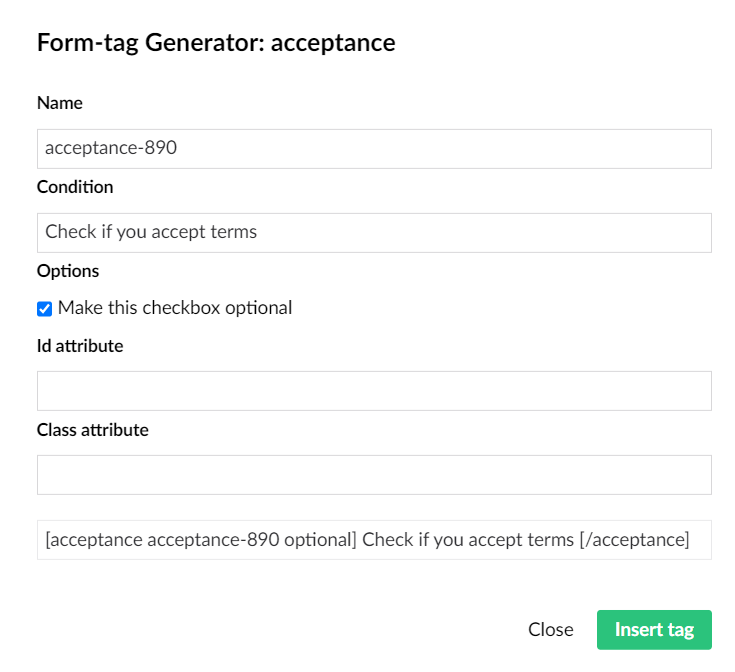
An acceptance checkbox is a simple checkbox dedicated to confirming the submitter’s consent for a specific condition. To use an acceptance checkbox in your contact form, simply insert an `acceptance` form-tag.

<table><thead><tr><th width="154">OPTION</th><th width="407">DESCRIPTION</th><th>EXAMPLE</th></tr></thead><tbody><tr><td>id:<em>(id)</em></td><td>Specifies id of the input element</td><td>id:test</td></tr><tr><td>class:<em>(class)</em></td><td>Specifies  class of the input element. Multiple classes can be assigned, like this: <code>class:nice class required</code></td><td>class:nice</td></tr><tr><td>optional</td><td>By default, an acceptance checkbox functions as a required field. If you explicitly set the 'optional' option, the checkbox operates as an optional field.</td><td>filetypes:pdf|txt<br></td></tr></tbody></table>

Example:

```
[acceptance your-consent] I accept terms. [/acceptance]
```

Note that, unlike other form-tag types, the \[acceptance] tag is closed with a \[/acceptance] tag at the end. The content between the opening and closing tags is the content of the form-tag.

You can include form-tag `acceptance` by selecting the "**acceptance**" button in the tools section and then filling in the generated form.

<figure><img src="/files/WERW8u84V0OLO4VuwYxv" alt="" width="551"><figcaption></figcaption></figure>

#### Submit button

Form-tag submit  represents HTML input type **sumbit**.&#x20;

<table><thead><tr><th width="154">OPTION</th><th width="407">DESCRIPTION</th><th>EXAMPLE</th></tr></thead><tbody><tr><td>id:<em>(id)</em></td><td>Specifies id of the input element</td><td>id:test</td></tr><tr><td>class:<em>(class)</em></td><td>Specifies  class of the input element. Multiple classes can be assigned, like this: <code>class:nice class required</code></td><td>class:nice</td></tr></tbody></table>

It is the only tag without name, but you can set its value. Example:

```
[submit "Send"]
```

You can include form-tag `submit` by selecting the "**submit**" button in the tools section and then filling in the generated form.

<figure><img src="/files/0IeUwGrOBuDePaIWPyt7" alt="" width="551"><figcaption></figcaption></figure>

#### Hidden

A hidden field is used during a web form submission to include data that isn’t intended to be modifiable or viewable by the end user who submits the form.

Form-tag `hidden` represents HTML input type **hidden**.&#x20;

<table><thead><tr><th width="154">OPTION</th><th width="407">DESCRIPTION</th><th>EXAMPLE</th></tr></thead><tbody><tr><td>id:<em>(id)</em></td><td>Specifies id of the input element</td><td>id:test</td></tr><tr><td>class:<em>(class)</em></td><td>Specifies  class of the input element. Multiple classes can be assigned, like this: <code>class:nice class required</code></td><td>class:nice</td></tr></tbody></table>

Example:

```
[hidden your-email "test@test.com"]
```

You can include form-tag `hidden` by selecting the "**hidden**" button in the tools section and then filling in the generated form.

<figure><img src="/files/xp6KHr1OfA6DMUu6gM3S" alt="" width="553"><figcaption></figcaption></figure>

### Form autocompletion

[Text fields](#text-fields)  support the autocomplete option, allowing you to customize the behavior of autocompletion in the generated HTML.

For instance, if you wish to enable autocompletion for the user's name and set the autocomplete option to "name" in a form-tag, the code would look like this:

```
[text* your-name autocomplete:name]
```

The resulting HTML element output will include the autocomplete="name" attribute. In browsers that support autocompletion, this attribute prompts the browser to suggest the user's full name for input, enhancing the user experience.

### reCAPTCHA (v3)

You can use reCAPTCHA module in your forms to protect you against spam and other types of automated abuse. Uform Kit uses reCAPTCHA v3 API.

First you need to go to [reCAPTCHA Admin Console](https://www.google.com/recaptcha/admin/create) and register your site. Choose **reCAPTCHA v3** from type options. After you register a website, you will get the site key and secret key for the site.

You should add them to your appsetings.json file, like this:

```
 "UFormKit": {
    "Recaptcha": {
      "SiteKey": "[your site key]",
      "SecretKey": "[your secret key]"
    }
  }
```

Now, go to **Content** section, select your contact form and check option **Use recaptcha** in **Template** tab.&#x20;

<figure><img src="/files/zrS5jfBWlk9UabBURi0b" alt=""><figcaption></figcaption></figure>

Since version 1.0.4, we have integrated a scoring system into reCAPTCHA validation. By default, a threshold of 0.5 is used, but this value can be changed in the appsettings.json file like this:

```
"UFormKit": {
    "Recaptcha": {
     "ScoreThreshold": 0.3
    }
  }
```

Adjust the ScoreThreshold value as needed to customize the scoring system to your application's requirements.

### Honeypot

Starting from version 1.0.6, we've added the '**Use Honeypot**' option in the **Template tab**. When enabled, a honeypot field will be added to your form to help further prevent spam.

### Cloudflare Turnstile

Starting with version **1.0.9**, UForm Kit includes built-in support for **Cloudflare Turnstile** — a privacy-focused CAPTCHA alternative that helps block bots and automated abuse.

Visit the [Cloudflare Turnstile dashboard](https://dash.cloudflare.com/), under the Turnstile section, click "**Add Widget**," and configure it to get your **Site Key** and **Secret Key**.&#x20;

You should add them to your appsetings.json file, like this:

<pre><code> "UFormKit": {
    "CloudflareTurnstile": {
        "SiteKey": "[your site key]",
        "SecretKey": "[your secret key]"
<strong>    }
</strong>  }
</code></pre>

Now, go to **Content** section, select your contact form and check option **Use Cloudflare Turnstile** in **Template** tab.

## Displaying form on a page

There are two options to display form on a page: by using a a View Component or by using a macro.

#### Displaying form using a View Component

You can render form by calling a view component like this:

`@await Component.InvokeAsync("UForm",new { id = ["form node id"]})`

If you want to add a contact form as a property, you can use the existing **Content Picker** editor.

Go to the **Settings** section and select Document type where you want to add a contact form. Add a new property and select **Content Picker** for editor. In additional editor settings,  we suggest checking **Show open button** and setting UForm Kit as **Start node**.

<figure><img src="/files/L5ZXbGsPQdKiWmdfVxnp" alt=""><figcaption></figcaption></figure>

Now go back to the **Content** section and add desired contact form on your page.

<figure><img src="/files/8FDXnI7OJnR7vLpDyJBs" alt=""><figcaption></figcaption></figure>

Now, you can render a form by referencing a  content picker editor:

`@await Component.InvokeAsync("UForm",new { id = @Model.ContactForm.Id})`

#### Displaying form using a macro

If you want to display a contact form with macro, use following:

`@await Umbraco.RenderMacroAsync("insertUForm", new { formId = ["form node id"]})`

Macro has only one parameter **formId,** which represents Id of contact form

#### Form Validation

UKitForm is using jquery validation plugin to validate contact forms.  These client dependencies shoul be added to View:

* jQuery&#x20;
* jQuery validate&#x20;
* jQuery validate unobtrusive

Example:

```
<script src="https://ajax.aspnetcdn.com/ajax/jQuery/jquery-3.7.1.min.js"></script>
<script src="https://ajax.aspnetcdn.com/ajax/jquery.validate/1.19.2/jquery.validate.min.js"></script>
<script src="https://ajax.aspnetcdn.com/ajax/mvc/5.2.3/jquery.validate.unobtrusive.min.js"></script>
```

## Setting up mail

### SMTP server configuration

First, you should configure your SMTP server in appsettings.json file, under **Umbraco:CMS:Global:Smtp** section. For more information, check [this link](https://docs.umbraco.com/umbraco-cms/extending/health-check/guides/smtp)`.`

### Mail-tags

A mail-tag within a template is notably more straightforward than a form-tag, consisting of just a single word, usually corresponding to the form-tag's name. This word will be substituted with the corresponding form input during the process.

If you have form-tag:

```
[text* your-subject class:required "Contact"]
```

corresponding mail-tag would be `[your-subject].`

### Mail template

In **Mail** tab, user can edit email template including message body, file attachments an message header fields.

<figure><img src="/files/0yqAVecCAC8vVFa6HJ41" alt=""><figcaption></figcaption></figure>

**To field**

Set the recipient email address here. Mail-tag can be used for this field.

**From field**

Set the sender email address here. Default value is `Umbraco:CMS:Global:Smtp:From` from you appsettings.json file.&#x20;

**Subject field**

Set the subject of the message here. Mail-tag can be used here, e.g \[your-subject]

**Cc field**

Set the CC recipient to the email message. Mail-tag can be used for this field.

**Bcc field**

Set the BCC recipient to the email message. Mail-tag can be used for this field.

**Reply to**

Set the address other than the From address to use to reply to this message. Mail-tag can be used for this field.

**Message body**

Set the message body here; you can add mail-tags anywhere in this field.

Should you select  the "**Exclude lines with blank mail-tags from output**" checkbox, lines containing mail-tags with no values will be omitted from the actual email output's message body.

By default, plain text is employed for the message body. To use HTML instead, mark the "**Use HTML content type**" checkbox.

If the **'Exclude links from message**' option is selected, all URLs will be removed from the message body.

**File attachments**

When attaching uploaded files to this email, insert mail-tags representing the uploaded files into the "**File attachments**" field. For instance, if you have a form-tag like this:

&#x20;`[file your-file limit:1MB]`&#x20;

the corresponding mail-tag  is:

`[your-file]`

It's important to note that what you place in the "**File attachments**" field is `[your-file]` (mail-tag), not `[file your-file limit:1MB]` (which is a form-tag).

If you've uploaded multiple files and wish to include them all in an email, simply use a new line, as shown below:

<figure><img src="/files/DNH9dRYNJWhiTRkJ9A1a" alt=""><figcaption></figcaption></figure>

### **Special mail-tags**

Special mail-tags can be use in various sections of your form template to capture and include additional information beyond what's directly entered by the user (such as in the message body or other mail-related fields).&#x20;

* `[_remote_ip]`: This mail-tag is substituted with the submitter’s IP address.
* `[_user_agent]`: Use this mail-tag to represent the submitter’s user agent information, which typically refers to their browser.
* `[_url]`: When included, this mail-tag gets replaced by the URL of the page where the contact form is embedded.
* `[_date]`: This mail-tag gets replaced by the date of the form submission.
* `[_time]`: Include this mail-tag to have it substituted with the time of the form submission.

## Editing messages

You have the ability to modify messages utilized in different scenarios within the Messages tab. Certain messages serve as notifications to the sender regarding the status of the contact form, including:

* Thank you for your message. It has been sent.

Additionally, there are messages indicating validation errors in input fields:

* The field is required.

<figure><img src="/files/VKfBDlpWsBOWFPk4eKeF" alt=""><figcaption></figcaption></figure>

## Additional settings

Additional settings can be set within the Additional settings tab:

<figure><img src="/files/h7ra7X4nvzpKaEqguhqS" alt=""><figcaption></figcaption></figure>

### **Do not store data**

If this option is checked, submitted messages won't be saved to the database.

### **Demo mode**

By enabling the demo mode,  your contact form will skip the typical process of sending emails. Instead, it provides a response message indicating that the submission has been "completed successfully."

It allows you to simulate successful form submissions without generating real email traffic during testing or demonstration phases.

### **Redirect to page**

UForm Kit typically redirects to the same URL as the form's URL by default after form submissions

This redirection setup provides a way for you to tailor the post-submission experience for users, directing them to a customized "Thank You Page" or any other designated URL.

### **Block IP addresses**

Since version 1.0.8, we have added the **Block IP addresses** option, which prevents submissions from specific IP addresses or ranges. You can enter a list of IPs or ranges, separated by commas. For example: `199.99.9.9, 133.33.33.*`

## Storing submitted messages

Since version 1.0.2, UForm Kit package stores submitted message in the database by default. You can see saved messages by clicking on desired form in the Content tab.

<figure><img src="/files/4rnHYiAXKqVBzJSCbsbk" alt=""><figcaption></figcaption></figure>

If you don’t want to store messages for certain contact forms, you can achieve this by checking the **Do not store data** in the contact form’s [**Additional Settings**](#additional-settings) tab panel.

## AJAX submissions

Our package supports AJAX submission. Since version 1.0.3 you can utilize the "/umbraco/UFormKit/UForm/SendJson" method, which returns a JSON result response. The response object includes properties such as "Success" indicating the success status and "Message" providing additional information.&#x20;

## Telemetry statistics

Since version 1.0.2, our UForm Kit package has been collecting telemetry data. This provides us with insights to which Umbraco and package versions being used, so that we can make informed decisions on how to focus our future development efforts. The data is sent anonymously, no personal or sensitive data is collected.

### What type of data is being captured?

An example of the data captured is as follows.

```
{
    "umbraco_id": "0403E47E-EFE7-4CF2-8E97-148681DAFC10",
    "umbraco_version": "13.0.0",
    "package_id": "UForm Kit",
    "package_version": "1.0.2"
}
```

### How to disable telemetry?

If you would prefer to opt-out and disable the telemetry feature, add this option in your appsettings.json file:

```
{
  "UFormKit": {
    "DisableTelemetry": true
  }
}
```

## UFormEmailSentNotification

Starting from version 1.0.3, our package introduces a new feature: the custom UFormEmailSentNotification notification. This notification is triggered after the form has been successfully sent via email, allowing you to easily hook into this event.

```
public class UFormEmailSentNotification : INotification
{
    public IFormCollection Form { get; set; }

    public string Message { get; set; }

    public UFormEmailSentNotification(IFormCollection form, string message)
    {
        Form = form;
        Message = message;
    }
}
```


---

# Agent Instructions: Querying This Documentation

If you need additional information that is not directly available in this page, you can query the documentation dynamically by asking a question.

Perform an HTTP GET request on the current page URL with the `ask` query parameter:

```
GET https://hexxu-services-ltd.gitbook.io/uform-kit-documentation/technical-documentation.md?ask=<question>
```

The question should be specific, self-contained, and written in natural language.
The response will contain a direct answer to the question and relevant excerpts and sources from the documentation.

Use this mechanism when the answer is not explicitly present in the current page, you need clarification or additional context, or you want to retrieve related documentation sections.